
Priory School
Parents Evening Booking
2026/2027
Autumn Term: Monday 12th October 15:30 - 19:00 and Tuesday 13th October 15:30 - 17:30
Spring Term: Monday 15th March 15:30 - 19:00 and Tuesday 16th March 15:30 - 17:30
How to Book
Parents’ Evening appointments are booked online through our school website.
Before each Parents’ Evening, parents and carers will receive an email confirming the dates and letting you know when the booking system is open. The email will include a link to the online booking system, where you can choose an available appointment time with your child’s teacher.
You will need an account linked to the email address you have registered with the school in order to make a booking. If you are unsure whether you have an account, or need any help with this, please contact our IT technician via the school office.
Please remember that selecting a time only reserves the appointment temporarily. You must click ‘SAVE’ to confirm your booking. If you do not save your selection, the appointment will become available for another parent to book.
Further guidance on logging in and making and saving your booking can be found below.
Your Account Details
We will initially generate an account for you using the email address you have provided to the school for communications. When we do this, you will receive an email inviting you to create a password for your account.
If you have not received the message, check your junk/spam folder and ensure that you have added support.jw@junipereducation.org to your safe senders list.
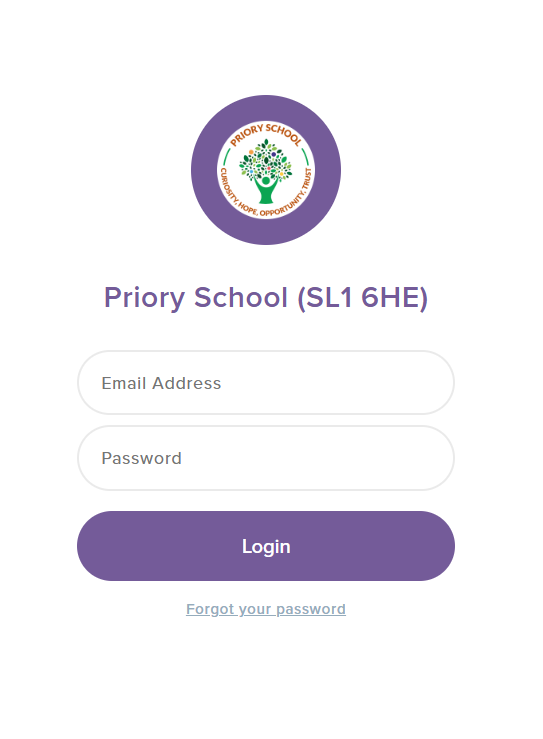
Logging in
You can access our booking system at any time using this link:
You will be prompted to log in by entering your email address and password. If you have not yet set your password, you can request a password reset email by clicking ‘Forgot your password’. You should use the email address you have registered with the school.
Making a Booking
The child you are booking for will show in the top right-hand corner of the screen. If you have more than one child at our school, you will see a circle for each child. Simply click on the relevant circle to select the child you want to make a booking for.
Find the teacher and time you’d like to book and click to reserve the time slot. The selection will show in green with the word “RESERVED”. The time allocated for each slot will be automatically populated.
Please note: the slot will only be reserved for 10 minutes.
To confirm the reservation you’ll need to click on the save button in the bottom right corner.